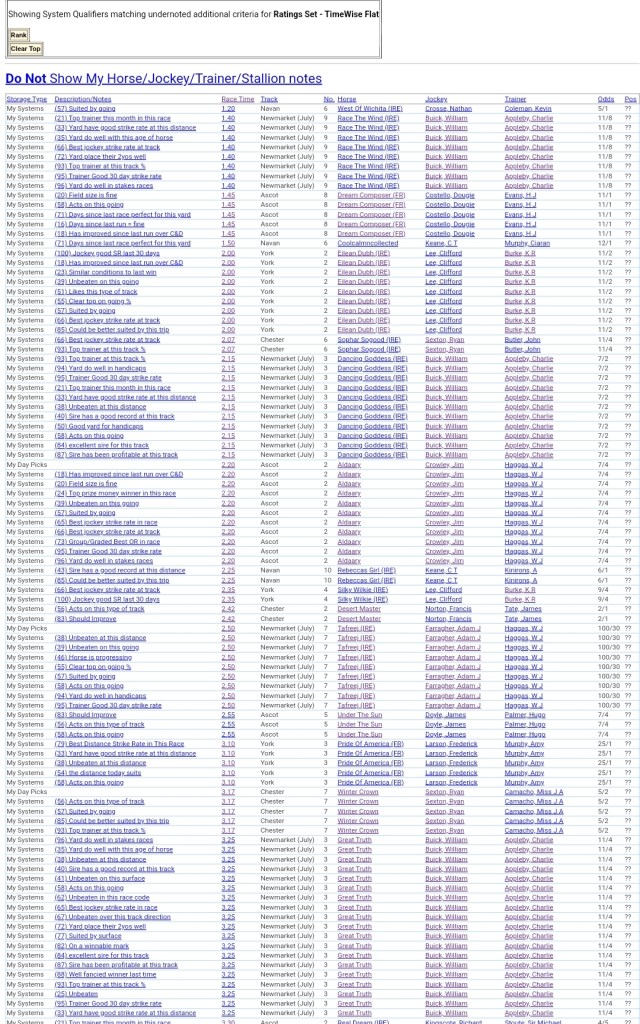
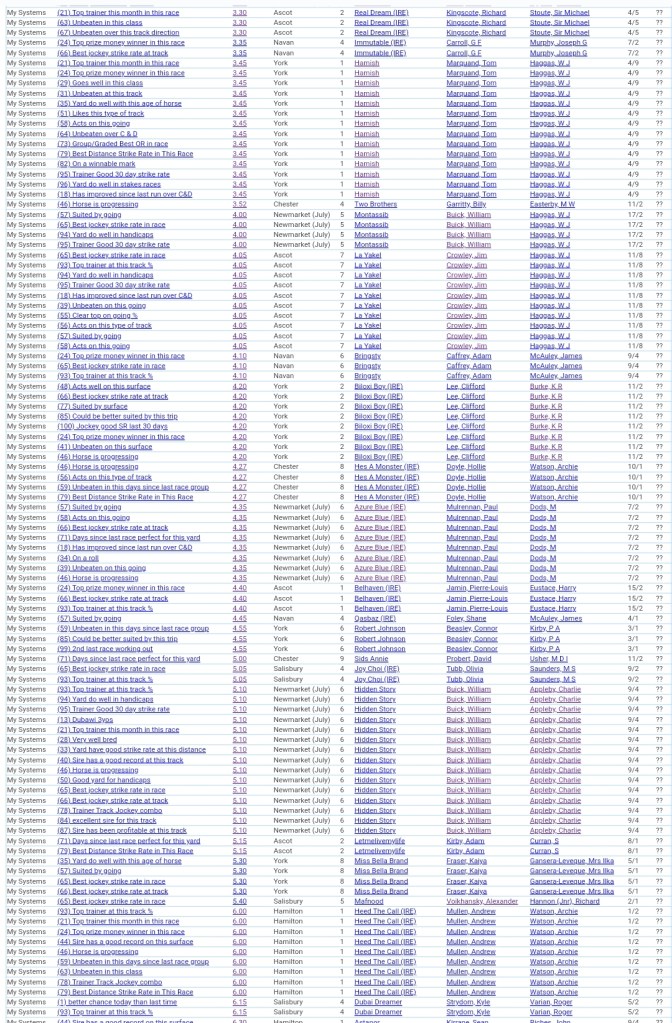

To zoom into a blog post on your PC, you can use the built-in zoom functionality of your web browser. Here’s how you can do it in popular browsers:
On Google Chrome:
1. Press the “Ctrl” key on your keyboard.
2. While holding down Ctrl, press the “+” key to zoom in or the “-” key to zoom out. You can also use the scroll wheel on your mouse while holding Ctrl to zoom in or out.
3. Repeat the steps until you have the desired zoom level.
On Mozilla Firefox:
1. Press the “Ctrl” key on your keyboard.
2. While holding down Ctrl, press the “+” key to zoom in or the “-” key to zoom out. You can also use the scroll wheel on your mouse while holding Ctrl to zoom in or out.
3. Repeat the steps until you have the desired zoom level.
On Microsoft Edge:
1. Press the “Ctrl” key on your keyboard.
2. While holding down Ctrl, press the “+” key to zoom in or the “-” key to zoom out. You can also use the scroll wheel on your mouse while holding Ctrl to zoom in or out.
3. Repeat the steps until you have the desired zoom level.
Please note that the specific steps may vary slightly depending on your browser version or operating system. If you’re using a different browser, consult the browser’s documentation or search online for the instructions specific to your browser version.
 TimeWise Chronicles
Leave a comment